Quick start: mobium inspect
A page on your own machine with the device's screen in it: every element
map finds outlined, the locator for the one you click, actions on it, a
place to try a locator and see what it matches — and what you do, kept as a
test mobium test runs.
Everything below was run on 2026-09-29 against MobiumApp on an Android 15 emulator; the output is what mobium printed. Before this guide: the quick start, and MobiumApp installed.
1. Start it
$ mobium inspect --device emulator-5554
mobium inspect on http://127.0.0.1:47311/819d02101356fef7563223333156107f/ — Ctrl-C to stop
Open that URL — --open does it for you. The long part of it is a token: the
page answers nothing that does not carry it (below).
It calls the same tools every command does, through the same daemon, so a
terminal and the page drive one session: run mobium tap in a terminal and
Refresh shows what it did.
2. Find the locator for anything
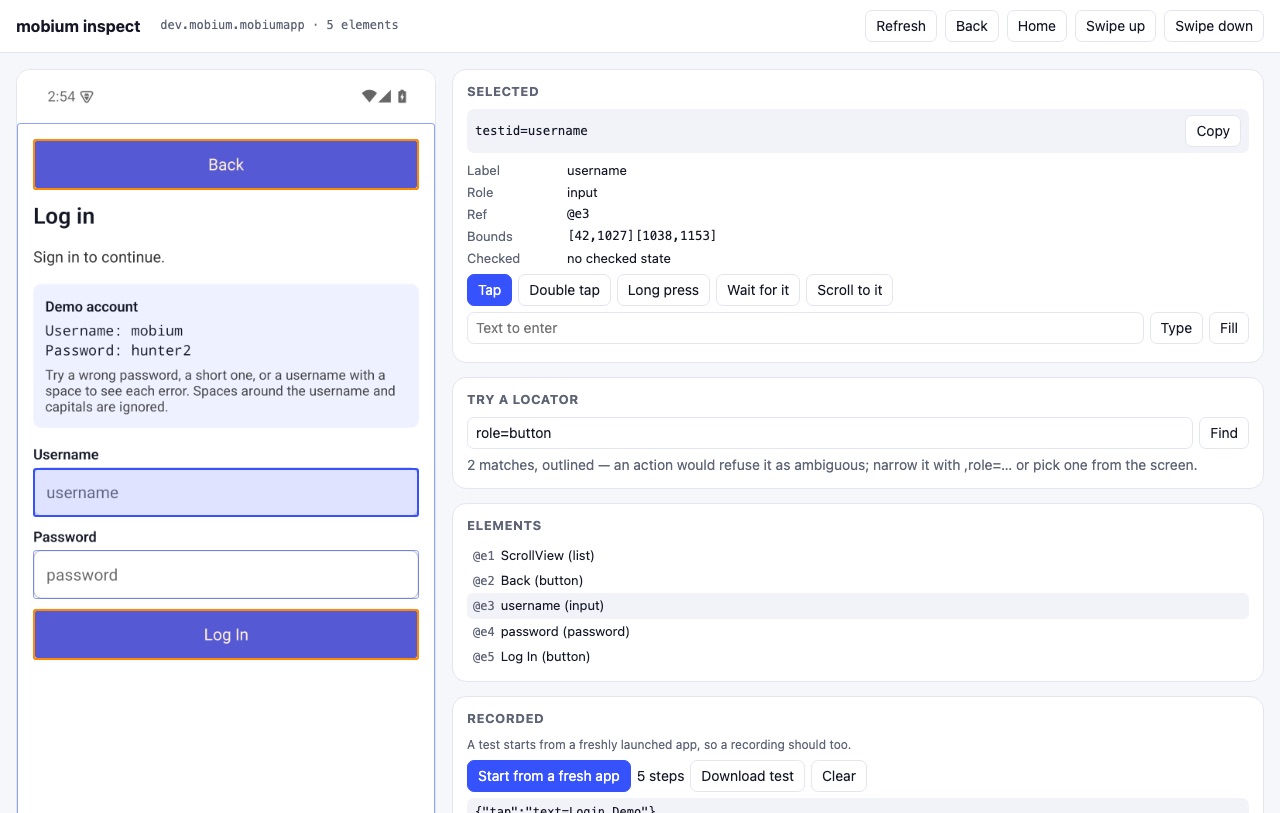
Click an element on the screen, or in the list under it. The panel says what
map says of it — label, role, ref, bounds, checked state — and, at the top,
the locator a test should use: the one map derived as the most durable
that names it alone, testid=username here. The ref, @e3, names it on this
screen only.
The buttons under it act on it — tap, double tap, long press, check or uncheck, wait for it, scroll to it, type or fill text — through the tools, waiting and refusing as a command would; a refusal is in the log, with its code. Clicking where no element is offers to tap that point. Back, Home and the swipes act on the screen.
3. Try a locator
Type a locator and Find: every match is outlined in orange, and the page
says how many. role=button on the Login Demo matches two, Back and Log In —
"2 matches, outlined — an action would refuse it as ambiguous", which is
what mobium tap role=button would say, seen before it is said.
4. Record a test
A test starts from a freshly launched app, so a recording should too:
Start from a fresh app stops the app in front and launches it again, as
mobium test does before each test, and starts recording. From there, every
action is a step. Recorded on the Login Demo:
{
  "app": "dev.mobium.mobiumapp",
  "description": "Recorded with mobium inspect.",
  "tests": [
    {
      "name": "recorded",
      "steps": [
        {"tap": "text=Login Demo"},
        {"fill": {"target": "testid=username", "text": "mobium"}},
        {"fill": {"target": "testid=password", "text": "hunter2"}},
        {"tap": "testid=loginBtn"},
        {"wait_for": "text=Welcome"}
      ]
    }
  ]
}
(Spaced for reading.) Download test saves it as recorded.test.json, in
the step shorthand and by locator, never by ref. It runs as it is:
$ mobium test recorded.test.json
  ok    [default · emulator-5554] recorded.test.json › recorded (8.5s)
1 passed (8.5s)
A recording keeps what you typed, the password included; that is the demo account's here, and worth remembering before recording against your own.
Who can reach it
It listens on 127.0.0.1 only, so nothing off this machine can. That is not
enough for a page that taps a device: any web page open in the same browser
can send a request to 127.0.0.1. So the inspector answers only a request
that carries the token from the URL it printed — which nothing else has —
and whose Host is the address it listens on, which a DNS-rebinding page's
is not. An action must be a POST, and must be one of the actions above:
the page cannot uninstall an app or run a script in a WebView by naming
the tool. On a real phone the screen is somebody's; the page shows it only to
the person who started the command, and saves nothing but the test they
download.