Quick start: JavaScript
Start a session on a device, launch Settings, tap a row, take a screenshot, and quit — from JavaScript. Starts with await start({ platform, app }); ends with await device.quit().
Before this page: install mobium and prepare a device.
1. What you need
Node.js 18 or later.
2. Install the client
Not on npm yet, and npm cannot install a package from a folder inside a repository, so until the first release it installs from a clone. After the release this becomes npm install mobium.
git clone https://github.com/mobiumdev/mobium.git ~/mobium
mkdir quickstart && cd quickstart
npm init -y
npm install ~/mobium/clients/javascript
3. The code
Save this as quickstart.mjs in the project folder — it is examples/javascript/quickstart.mjs.
// Mobium quick start: start a session, drive Settings, quit.
//
//   MOBIUM_PLATFORM=android node quickstart.mjs    # or ios
import { start } from 'mobium'

// Settings is on every emulator, simulator and phone, with nothing to install.
const PLATFORMS = {
  android: { app: 'com.android.settings', row: 'Network & internet', next: 'text=Airplane mode' },
  ios: { app: 'com.apple.Preferences', row: 'General', next: 'label=About,role=button' },
}
const platform = process.env.MOBIUM_PLATFORM || 'android'
const p = PLATFORMS[platform]

// 1. Start the session: the driver is started on the device and Settings is
//    launched.
const device = await start({ platform, app: p.app, device: process.env.MOBIUM_DEVICE })
try {
  const s = device.session
  console.log(`session on ${s.device} (${s.platform}, ${s.driver})`)

  // 2. Map the screen: every element you can act on, each with a @ref.
  const elements = await device.map()
  for (const e of elements.slice(0, 5)) console.log(' ', `${e.ref} ${e.label}${e.role ? ` (${e.role})` : ''}`)

  // 3. Tap a row by its ref, then wait for the screen it opens. A row's label
  //    can carry its summary too ("Network & internet Mobile, Wi-Fi, ..."),
  //    so match its start.
  const row = elements.find((e) => e.label.startsWith(p.row))
  await device.tap(row.ref)
  await device.waitFor(p.next)
  console.log(`opened ${p.row}`)

  // 4. Take a screenshot.
  await device.screenshot(`quickstart-${platform}.png`)
  console.log(`saved quickstart-${platform}.png`)
} finally {
  // 5. Quit: the device's session is closed, even after an error.
  await device.quit()
}
console.log('session ended')
Settings is on every Android and iOS device with nothing to install. The row and the screen after it are the only things that differ by platform.
4. Run it
Android
MOBIUM_PLATFORM=android node quickstart.mjs
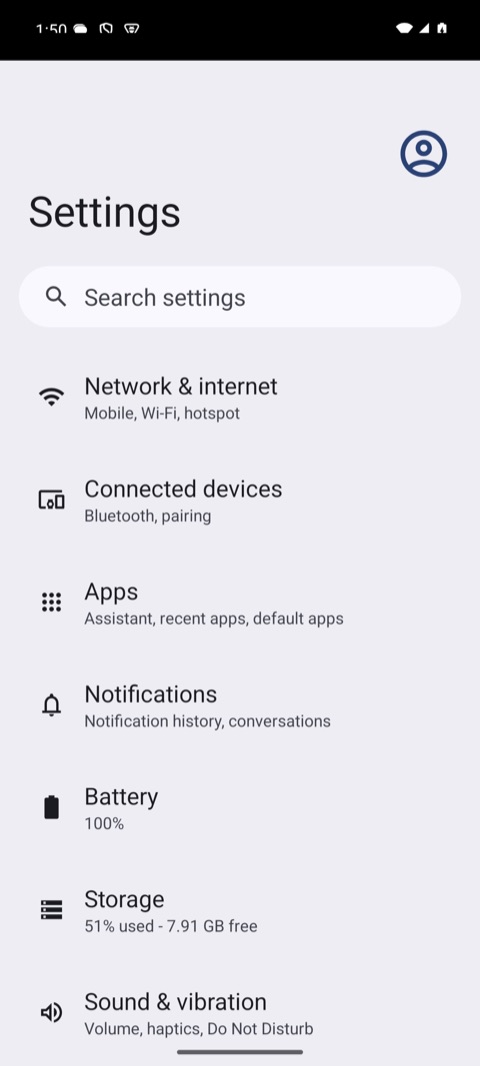
What it printed on an Android 15 emulator:
waiting for the UiAutomator2 server to start...
session on emulator-5554 (android, uiautomator2)
  @e1 settings_homepage_container (list)
  @e2 Profile picture, double tap to open Google Account (button)
  @e3 Search settings (button)
  @e4 main_content_scrollable_container (list)
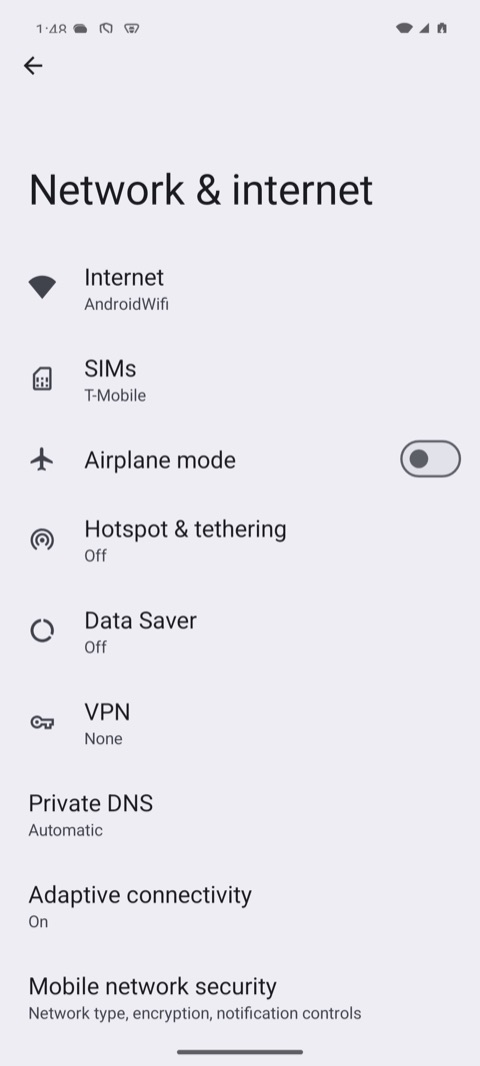
  @e5 Network & internet Mobile, Wi‑Fi, hotspot (button)
opened Network & internet
saved quickstart-android.png
session ended
| After start | After the tap |
|---|---|
 |  |
iOS
MOBIUM_PLATFORM=ios node quickstart.mjs
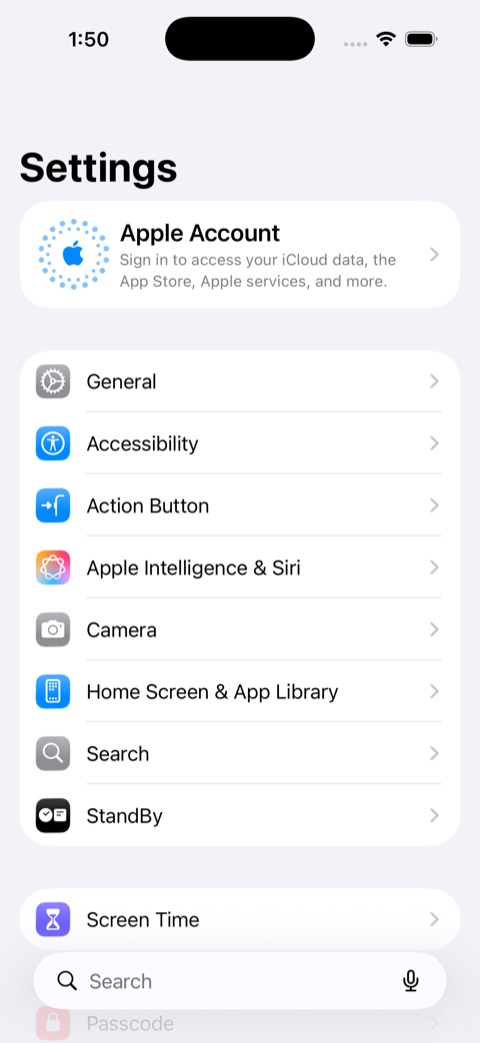
What it printed on an iOS 26.5 simulator:
waiting for WebDriverAgent to start...
session on 457C7DC2-C706-45D9-8D68-1D26953E28B1 (ios, wda)
  @e1 Apple Account, Sign in to access your iCloud data, the App Store, Apple services, and more. (button)
  @e2 General (button)
  @e3 Accessibility (button)
  @e4 Action Button (button)
  @e5 Apple Intelligence & Siri (button)
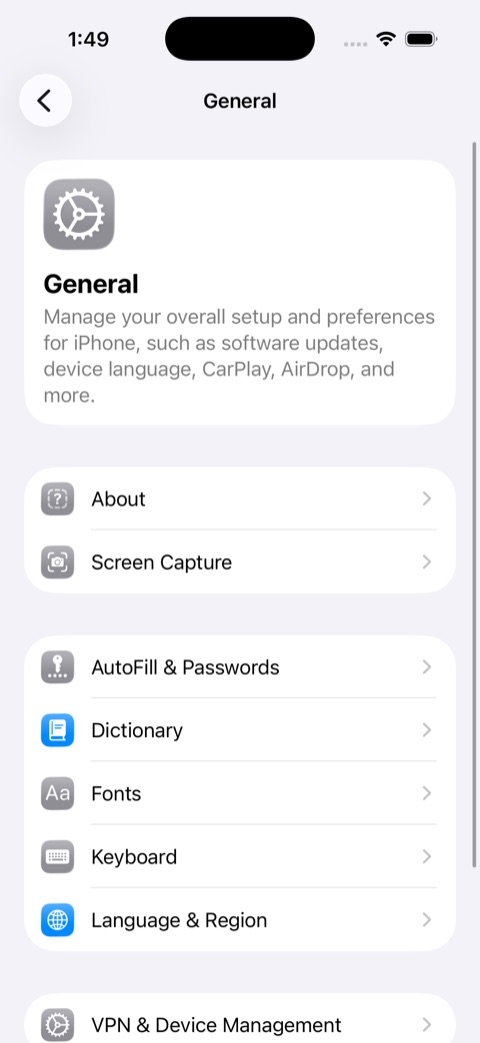
opened General
saved quickstart-ios.png
session ended
| After start | After the tap |
|---|---|
 |  |
The first start on a device is slow: it installs the UiAutomator2 server on Android, and on a real iPhone builds WebDriverAgent. Later starts take seconds.
Notes
- Put
quit()in afinally, as the example does, so an error part-way still ends the session. A secondquit()does nothing. connect()still exists: it opens a connection without touching the device, and itsclose()leaves the session open.- With more than one device of the session's platform running — two Android devices, or two among the booted simulators and attached iPhones —
startrefuses to guess and lists them. One Android device and one iOS device are not ambiguous: the platform picks. Name one withMOBIUM_DEVICE=<serial or UDID>, which the example passes on as the device.
Next: the rest of the tool surface, and setting up phones and simulators. Changing the client itself? DEVELOPMENT.md is the contributor's guide.